
School Tycoon Controls & UI Guide
Find Collect, Customize, Codes, and every purchase pad on PC or touch.
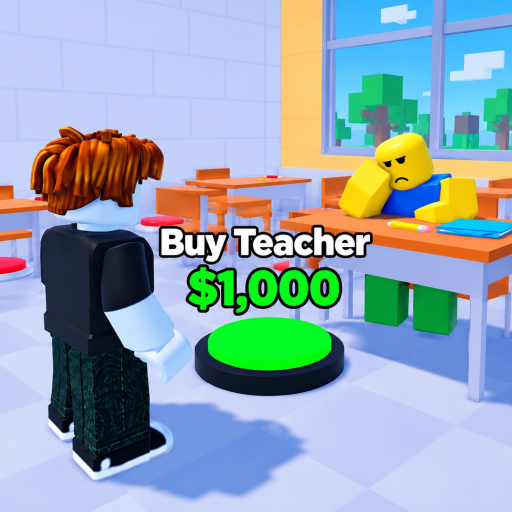
School Tycoon uses standard Roblox movement plus a tycoon-specific UI focused on collecting homework, buying pads, hiring staff, and opening Customize for codes, cosmetics, and schedule tools. This page is the controls and interface reference for Shark Fin Studios LLC’s experience so you never lose a purchase because a menu was hiding on mobile.
Pair it with Getting Started on day one and with Make Money when you are optimizing routes.
PC controls
| Action | Typical input |
|---|---|
| Move | WASD or arrow keys |
| Camera | Mouse drag / right mouse |
| Jump | Space |
| Interact / collect prompts | Walk into collectables or press the on-screen prompt (E / proximity) |
| Open Roblox menu | Esc |
| Zoom | Mouse wheel |
Roblox shift-lock and keybinds follow your account settings. School Tycoon does not require complex hotbar combat binds - your skill ceiling is camera discipline and menu speed.
PC collect tips
- Keep the camera slightly elevated so droppers and pads stay visible.
- Face the next pad while collecting so buy decisions happen without spinning.
- Use a second monitor or split window for the Tools checklist or tier lists.
Mobile / touch controls
| Action | Typical input |
|---|---|
| Move | Left virtual joystick |
| Camera | Drag on the right side of the screen |
| Jump | Jump button |
| Collect | Walk over homework / activate on-screen prompts |
| UI buttons | Tap Customize and other left-stack buttons |
Mobile collect tips
- Zoom out farther than you think; pads hide behind walls on small screens.
- Pause movement before tapping Customize so you do not walk off a bus lane.
- After redeeming codes, double-check the money label before closing the menu - fat-finger closes happen.
- If UI scales poorly, check Roblox Settings →?accessibility / UI options on your device.
Console players use controller sticks and Roblox’s button prompts; the same UI labels (Customize, Codes) apply when the experience supports your platform through Roblox.
Customize panel map
Customize sits on the left side of the screen in normal play. Inside you will commonly find:
- Codes - Type Code Here →?Redeem. Full steps on the Codes Hub.
- Color / material style options - cosmetic; delay while poor.
- Uniform options - also cosmetic-first.
- Schedule options - progression-critical when enabling field trips.
Open Customize →?change one trip-related setting →?close →?verify the world responded. That teachable moment beats randomly toggling every slider.
Purchase pads and proximity UI
Tycoon buttons appear as pads or labeled purchases on your plot. Walk onto them when you can afford the price. If nothing happens:
- You lack money - farm homework (Make Money).
- A prior pad is required - buy prerequisites first (Upgrades).
- You are on someone else’s plot - return to yours (Players).
- The server is still streaming - wait a moment after join.
Staff pads follow the same proximity rules; capacity limits are explained on the Staff tier list.
Collect UI and feedback
Homework collectables should respond with coin gains on your HUD. If collects feel dead:
- Confirm printers / stampers exist.
- Rejoin once to refresh the plot (autosave keeps progress).
- Ensure you are not standing in a neighbor’s drop path expecting their money.
There is no separate “end of day” ledger - watch the money counter after each lap and after every Redeem.
Bus and trip controls
When trips unlock, interaction shifts partly to bus proximity and schedule Customize. Clear your avatar from the lane, start the trip from the prompted control, and be ready to reinvest. Detailed flow: Field Trips.
Quality-of-life habits
- Before AFK: stand somewhere safe on your plot, not on a pad you might buy accidentally when you return.
- Before quitting: finish the current purchase animation; autosave is strong, but mid-click disconnects feel bad.
- After updates: reopen Customize and skim new buttons (Updates).
- Avoid executor keybinds: third-party injectors are unsafe; see Scripts.
Accessibility and comfort
If motion bothers you, lower camera sensitivity in Roblox settings. If text is small, increase device scaling. School Tycoon is a long-session builder - comfort settings matter as much as stamper order when you are pushing Complete School.
Quick reference checklist
- I can move and jump comfortably on my device
- I can find Customize without hunting
- I can open Codes and redeem
- I understand schedule vs cosmetic tabs
- I can buy a pad on my plot only
- I can complete a homework lap without losing the camera
- I know where the bus lane will be later
Master the UI once and every other guide on this wiki becomes faster. Controls are simple on purpose - the depth is in what you buy, not in chorded combos.
Frequently Asked Questions
Quick answers to the most common School Tycoon questions.
Where is the Codes button in School Tycoon?
Open Customize on the left UI, then choose Codes. Type the code in Type Code Here and press Redeem.
How do I collect homework on mobile?
Use the joystick to walk over drops and follow on-screen prompts. Zoom out so you can see clusters of collectables.
Why can I not buy a pad?
Insufficient money, missing prerequisite pad, or you are standing on another player's tycoon. Return to your plot and check the price.
Does School Tycoon use special keybinds?
No complex combat binds. Standard Roblox movement plus proximity purchases and the Customize menus carry the game.
Where do I change uniforms or schedule?
Inside Customize. Treat schedule options as important for field trips; uniforms are cosmetic.